How to List Your Own Home — From Review to Posting and Renewal
Key Summary: After logging in, go to Listing Registration and follow the steps: Mobile Phone Verification → Enter Property Details → Check Disclaimer → Administrator Review . Once approved, the listing will be posted on the map and property information for 30 days and can be extended for free. You are limited to 3 listings per person that are under review or currently posted, and your contact information and detailed address will be publicly available.
You can list your home directly on Home Insight even if you are not a licensed real estate agency. I have organized the process from registration to posting and renewal step-by-step.
Registration proceeds like this.
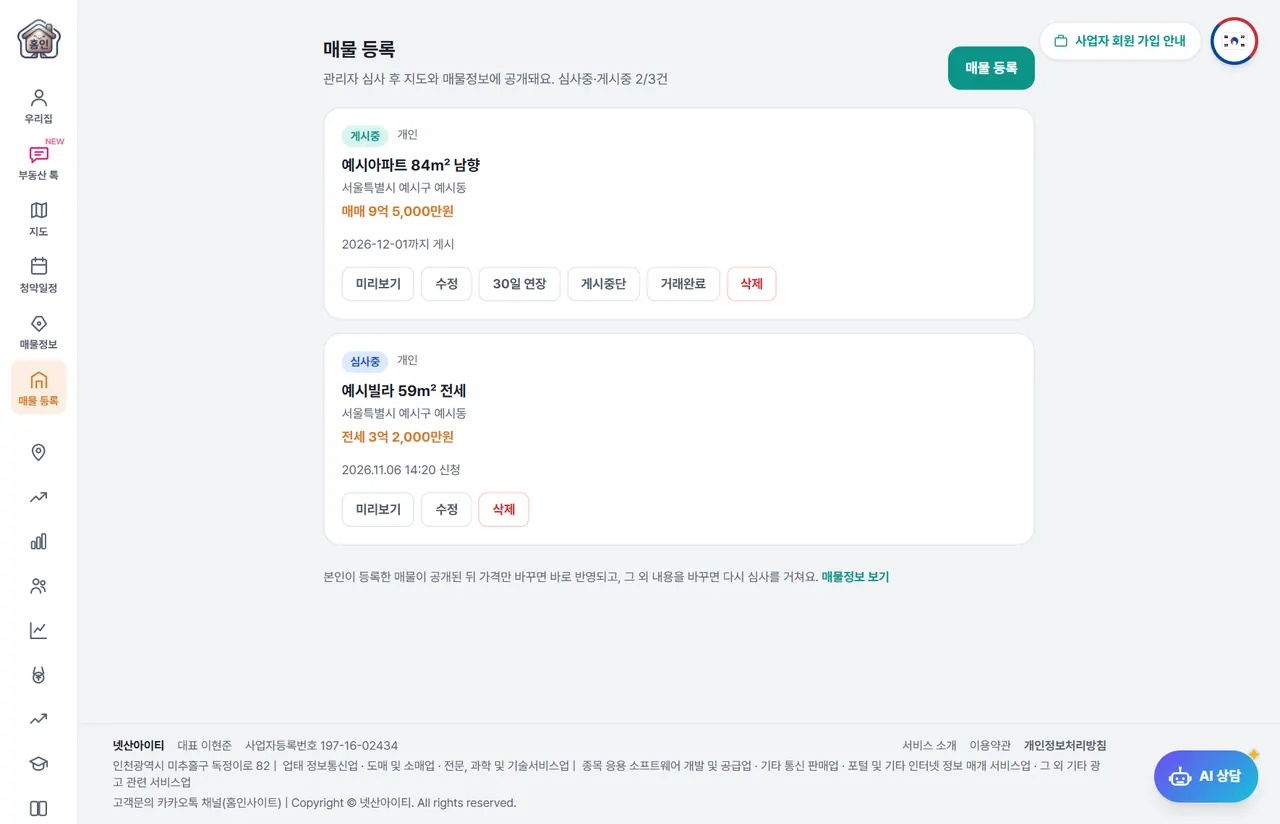
The listing on the screen above is an example for illustrative purposes.
- Login — Only members can register. Click Register Listing in the menu.
- Mobile Phone Verification — You only need to verify once; you won't need to do it again next time. You can receive verification codes up to 3 times per account per day.
- Enter Listing — Enter location, transaction type, price, area, photos, and description, and select the registrant type (Individual, Real Estate Agency, or Presale Agency).
- Check Disclaimer — Read and check the disclaimer.
- Review Application — An administrator will review and either approve or reject it. The result will be notified via text message.
Things to know before registering
- Information disclosed — The verified mobile phone number and detailed address are displayed on the listing screen.
- Liability — The legal responsibility for false or exaggerated listings lies with the listing registrant.
- Listing Limit — You can list up to 3 items per person, including listings under review and currently posted.
The state changes like this.
- Under Review — This is the stage where an administrator is verifying it. It has not been released yet.
- Posting — Approved and visible on the map and listing information. It remains posted for 30 days after approval.
- Rejection — You can check the reason for rejection displayed on the screen, modify it, and reapply.
- Takedown — I have taken it down manually. You can repost it if you have received approval.
- Transaction Completed — This is a listing that has been sold.
If you want to change the content while posting
- If you just change the price, it will be reflected immediately without a review.
- If you change any other content, it will undergo a review again, and once approved, it will be made public again.
You can extend the posting period for free. If you click " Extend by 30 days," it will start from that day and be set to 30 days. The period does not accumulate.
To make a property sell well
- Write down the location, area, and floor accurately.
- Determine the price by checking recent actual transaction prices for properties in the same complex and for the same floor plan. Learning how to properly read apartment actual transaction prices is helpful.
- Upload a photo showing the actual condition, and change the status to "Transaction Completed" immediately once the transaction is finished.
False or exaggerated content is subject to reporting. If two reports accumulate, the listing will be automatically hidden until an administrator verifies it. Please refer to "How to View Listing Information " for points to check when viewing listings.
Frequently Asked Questions
Is there a fee for listing?
Extending the listing period is free. Currently, there is no separate payment step on the general member listing screen.
Do I need to submit ownership documents such as a certified copy of the land register?
You do not need to submit ownership documents when registering. Instead, an administrator verifies the details, and the registrant is responsible for any false or exaggerated listings.
Up to how many listings can I post?
You are limited to a maximum of 3 items per person, combining items under review and currently posted. You can register a new item if you change the status to completed transaction or removed.
What happens when the posting period ends?
If you press the 30-day extension button while it is posted, it resets to 30 days starting from that day. The extension is free.