The Steps to Finding a Home with Home Insight — From Choosing a Neighborhood to Comparing Complexes
Key Summary: When looking for a home, it is best not to start by looking at listings, but rather in the order of Budget → Neighborhood → Complex → On-site Verification . With Home Insight, you can narrow down neighborhoods using regional information, compare prices using maps and complex details, check for any missed points with AI reports, and then verify everything on-site.
The most common mistake when looking for a house is starting by looking at listings. If you look at a property you like first, you have no basis to judge whether the price is expensive or cheap, or if the neighborhood suits you. I have outlined what you need to look for at each stage.
Step 1. Determine the budget and area first
Even within the same neighborhood, prices vary significantly depending on the area, so to make comparisons, you must first decide "what size house" you are looking at. Actual transaction prices for apartments are reported based on the exclusive use area .
- Exclusive area of 59㎡ — this is the size commonly referred to as a "25-pyeong type." Many units feature a layout with 3 bedrooms and 2 bathrooms.
- Exclusive area of 84㎡ — this is the size commonly referred to as the "34-pyeong type." It is the so-called "national standard" size with the highest volume of transactions.
Home Insight calculates regional average prices separately for these two sizes. Since the average is derived by aggregating only transactions with an exclusive area of 55–60㎡ for Type 59 and 80–85㎡ for Type 84, you can compare neighborhoods without the illusion caused by mixing different sizes.
Step 2. Narrowing Down Neighborhood Candidates — Local Page
If you select a city/province and a city/county/district in the regional information, you can view the market prices and living indicators for that area on one page.
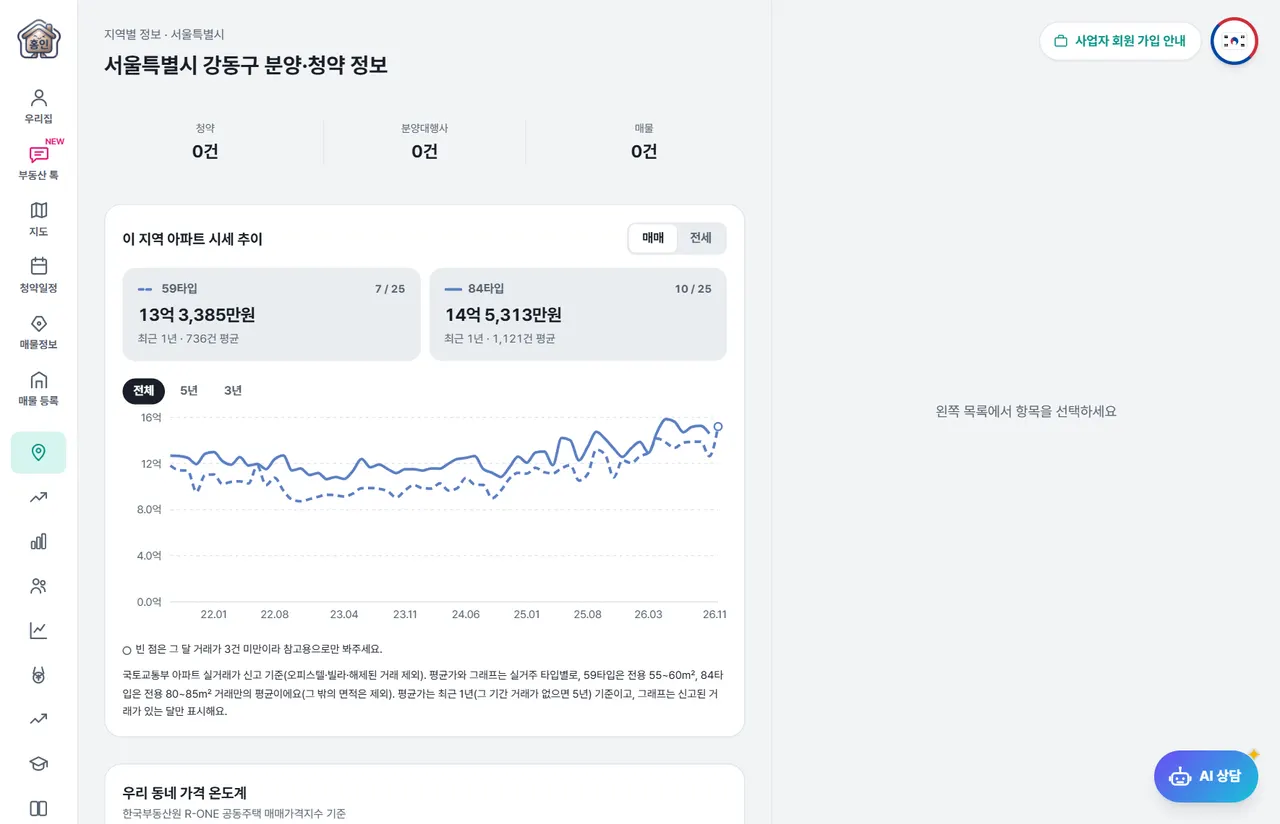
For example, as of November 2026, the average sale price of an 84-type unit in Gangdong-gu, Seoul over the past year is approximately 1.453 billion won, ranking 10th among the 25 districts of Seoul. The same page also shows which neighborhoods are expensive and have high transaction volumes.
The following are good factors to consider when comparing neighborhoods.
- Comparison of market prices and trading volume by neighborhood — Even within the same district, there are significant price differences between neighborhoods.
- Complex Ranking — You can view the representative complexes in the area in the order of highest price, popularity (active trading), total market value, and large complex.
- Population trends, safety index, and air quality — these are living conditions that you actually experience while living.
- Good News & Bad News — In Good News & Bad News, you can view regional news organized by AI and collected by region.
I have summarized the interpretation of each indicator in detail in "7 Indicators to Check When Choosing a Neighborhood ."
Step 3. Compare Complexes — Maps and Complex Details
Once you have selected a neighborhood candidate, move to that area on the map to compare the complexes. If you zoom in on the map, a badge appears for each complex, displaying the year of occupancy, recent transaction prices, and transaction unit sizes. By default, only apartments are displayed, but you can also view officetels and townhouses using the filter button at the bottom left.
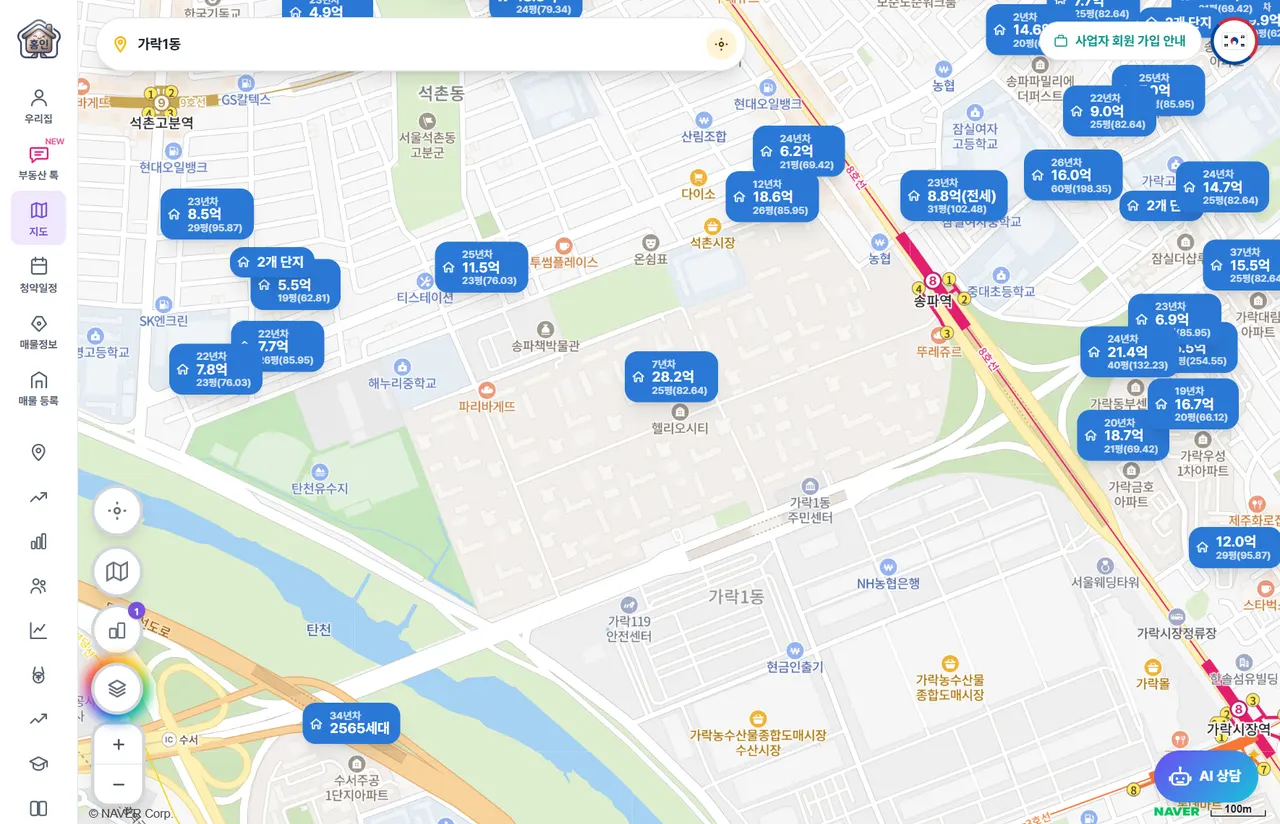
If you press the badge, the details will open.
- Overview — You can view recent sales, average sales, average Jeonse prices, and prices per pyeong at a glance.
- Actual Transaction Price — Select a unit size to view graphs and transaction lists by period (All · Last 3 years · Last 5 years).
- Living Score — Compares transportation, education, infrastructure, complex size, and residential environment on a scale of 100 points.
- Surroundings/School District — You can check nearby schools and living facilities.
- AI Report — Organizes market trends, checkpoints, risk signals, and regional positive and negative factors in one place.
For information on how to interpret actual transaction prices , please refer to "How to Properly Read Apartment Actual Transaction Prices ," and for information on how to read AI reports, please refer to "How to Read AI Reports ."
Step 4. View Subscription and Rental Together
If you are considering a new apartment, be sure to check out subscription applications along with existing apartments. In the subscription schedule section , you can view announcements and application dates by region on a calendar, and LH rental announcements are also displayed on the same calendar. You can also calculate your score in advance using the subscription point calculator.
- Presale Subscription — How to Read the Subscription Schedule and the Subscription Procedure
- Public Rental Housing — How to Find and Apply for LH Rental Announcements
Step 5. Things to check on-site
Online information is the starting point for making decisions. Before signing a contract, be sure to check the following on-site.
- The difference between asking price and actual transaction price — how much higher the asking price is compared to recent actual transactions for the same size property
- Floor, orientation, and building location — these are factors that make prices and lifestyles different even within the same complex.
- Management status and maintenance fees — the level of management of the complex is not clearly reflected in the data.
- School and work routes — Actual travel time is more important than distance on the map.
- Certified Copy of Land Register — Check ownership and rights such as mortgages.
Home Insight's data is based on public data, such as actual transaction prices from the Ministry of Land, Infrastructure and Transport. You can check the data sources and update methods in the Service Introduction .
Frequently Asked Questions
How are the exclusive area and the gross area different?
The exclusive area is the space actually used inside the house, while the gross area is the sum of this and the common residential areas, such as stairs and hallways. Since actual apartment transaction prices are reported based on the exclusive area, you must first check if the exclusive areas are the same when comparing prices.
When are actual transaction prices reflected?
Home Insight collects data released by the Ministry of Land, Infrastructure and Transport every day. However, since it can take up to 30 days from the contract to the report, the most recent transactions are updated over time.
Can I use the same feature on mobile?
Yes. If you press the menu button at the top left, the same menu as on the PC opens. On mobile, the complex details pop up from the bottom of the screen, and you can navigate to Actual Transaction Prices, Living Score, and AI Reports by pressing the chip at the top.
Related guides
- How to Properly Read Actual Apartment Transaction Prices — From Area and Floor to Transaction Timing
- How to Read Market Trends Using New Highs, New Lows, and Trading Volume Rankings
- Finding an Apartment with Active Trading — How to Read the Transaction Rate Relative to Households and Neighborhood Population Composition